If your Mac is suddenly running slow, beachballing constantly, or taking ages to open apps, you are not alone. The instinct is usually to restart, but that only provides a temporary fix. To permanently stop your Mac from lagging, you need to understand why it is happening.
Instead of guessing, let us look at the six most common reasons your macOS system slows down and the exact steps to diagnose and fix them.
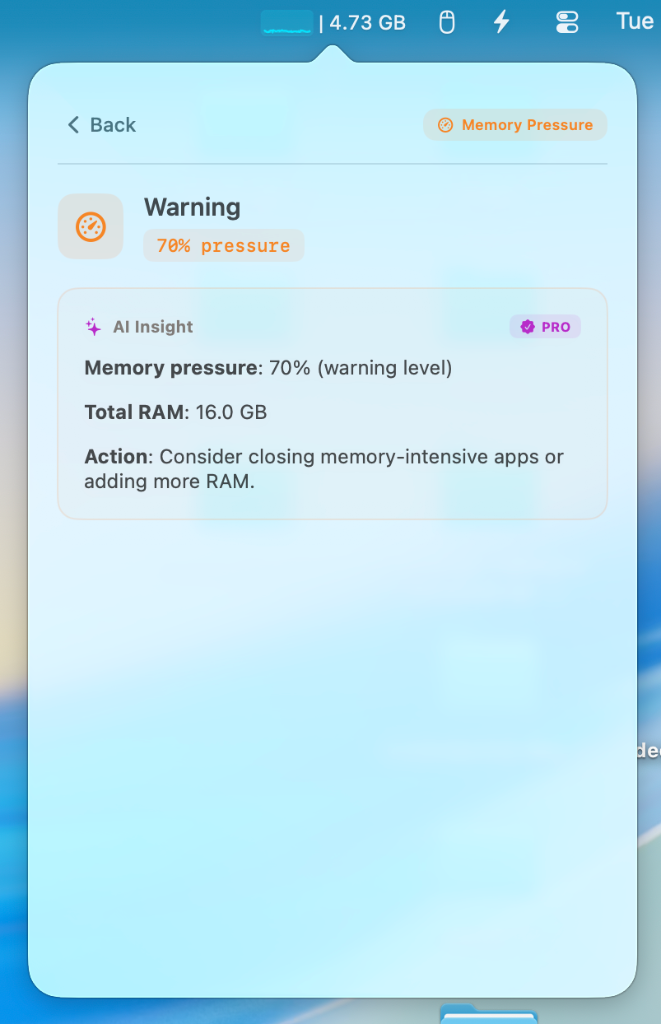
1. You are Out of RAM (High Memory Pressure)
When your Mac runs out of physical RAM, it starts using your hard drive as Swap memory. Because your hard drive is much slower than RAM, your entire system will begin to stutter.
How to check:
- Open Activity Monitor (Cmd + Space, type "Activity Monitor").
- Click the Memory tab.
- Look at the Memory Pressure graph at the bottom.
If the graph is yellow or red, your Mac is starved for memory.
The Fix: Sort the list by "Memory" to find out what is eating it. Web browsers with dozens of tabs, Electron apps like Slack or Discord, and heavy creative apps are usually the culprits. Close what you do not need.
2. A Background Process is Hogging the CPU
Sometimes a single app or background process goes rogue and consumes 100% of your CPU. This leaves no processing power for the apps you are actually trying to use.
How to check:
- In Activity Monitor, go to the CPU tab.
- Sort by the % CPU column.
You might see familiar apps, or you might see cryptic system processes. Some of the most notorious CPU hogs include:
WindowServer: The daemon responsible for drawing everything on your screen. If WindowServer is high, try reducing transparency or disconnecting external monitors.mds_stores: The indexing engine for Spotlight. If mds_stores is active, your Mac is scanning files and will finish eventually.launchd: The primary parent process that starts everything else. Learn more about launchd here.trustdornsurlsessiond: These daemons handle network security and background downloads. If they are spiking, a background app or iCloud sync is happening. Learn about trustd and nsurlsessiond.
Need help understanding processes? If you see
kernel_taskat 200%, you are dealing with thermal throttling. Read our definitive guide on What is kernel_task?.
3. Thermal Throttling (Your Mac is Overheating)
If your Mac gets too hot, macOS intentionally slows down the processor to prevent permanent hardware damage. This is called thermal throttling.
When this happens, you will often see a process called kernel_task skyrocketing in Activity Monitor. kernel_task is not actually causing the problem. It is macOS artificially taking up CPU cycles so that other apps cannot use them, giving the CPU time to cool down.
The Fix:
- Ensure your Mac vents are not blocked. Do not use it on a soft bed or pillow.
- Quit heavy rendering or gaming apps.
- Wait 10 to 15 minutes for the system to cool down.
4. Your SSD is Almost Full
macOS needs free space on your hard drive to function properly, specifically for Swap memory and temporary cache files. If your SSD is 95% full, your Mac will slow to an absolute crawl.
How to check: Go to System Settings > General > Storage.
The Fix: As a rule of thumb, always keep at least 10% to 15% of your drive completely empty. Delete old large files, empty the Trash, and uninstall massive apps you no longer use.
5. Too Many Login Items
If your Mac is incredibly slow right after you turn it on, you probably have too many apps trying to launch at the exact same time.
How to check: Go to System Settings > General > Login Items.
The Fix: Look under "Open at Login" and "Allow in the Background." Turn off toggles for apps you do not need running all the time.
6. Spotlight is Indexing
If you recently updated macOS, migrated to a new Mac, or moved a massive amount of files, Spotlight will rebuild its search index. During this time, your Mac will feel sluggish and your fans might run loud.
The Fix: Wait it out. It usually takes a few hours. Once indexing is complete, your speed will return to normal.
Stop Guessing. Start Understanding with MacStats.
Activity Monitor is great for showing you raw numbers, but it is terrible at explaining what those numbers actually mean. When you see a spike in nsurlsessiond or trustd, Activity Monitor leaves you to Google the answer.
We built MacStats to fix this.
MacStats is a lightweight, native menu bar app that monitors your CPU, memory pressure, and thermals at a glance. But more importantly, it features an AI Process Explainer.
Whenever you see a spike, just click the process and ask MacStats what it means. You will get a plain English explanation of exactly what the process is doing and whether you should be worried.
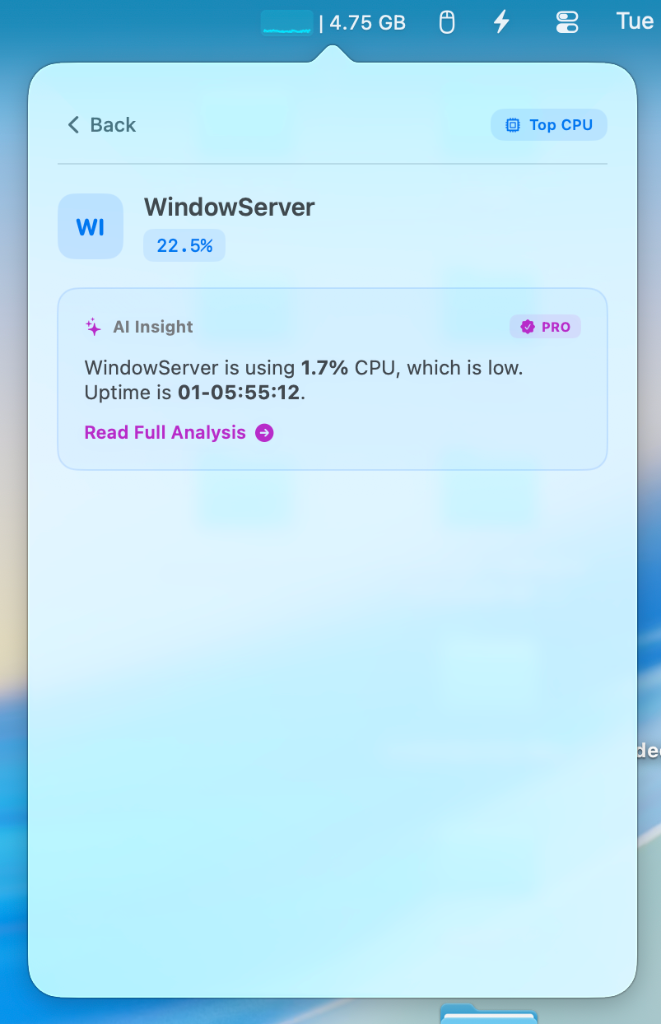
Download MacStats for Free Today (No Subscription) to see exactly how it compares to the built-in Activity Monitor.
Stop guessing what your Mac is doing.
Activity Monitor shows you numbers. MacStats explains them in plain English using AI. Keep an eye on your system health straight from your menu bar.
Download MacStats Free